Usability Testing
Learning usability testing with maze
Timeline
Nov/Dec 2023
Role
UX/UI Designer
Designer
Kai Zhang
MineSight
Intro
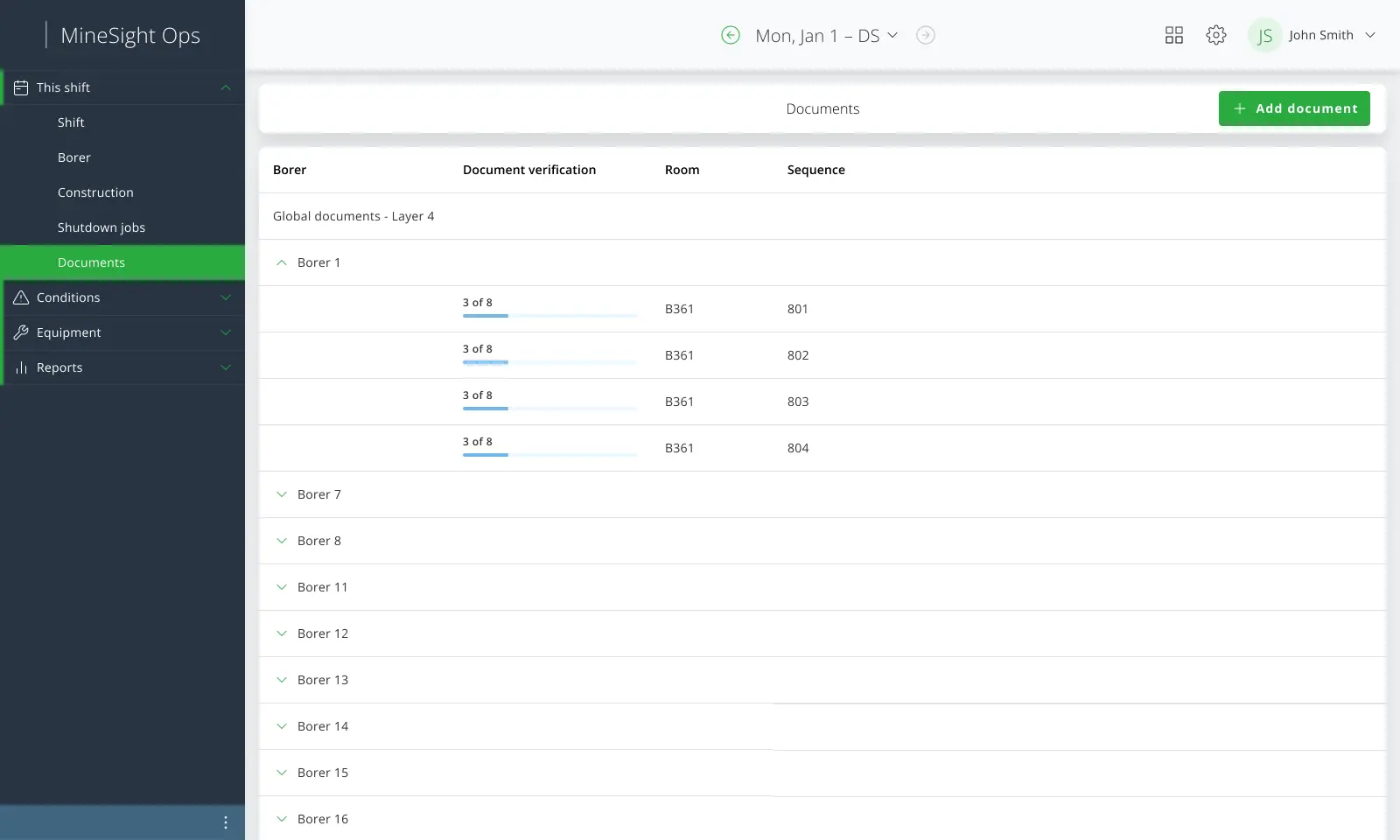
MineSight is a Nutrien web app, it’s used by mine supervisors who oversee the mines on a day to day basis. Mine supervisors often need to upload documents to a room/location (room and location can be used interchangeably), these rooms are dug out by borers, that can move from room to room or dig out new rooms. Some rooms have sequences (which are different parts of that room) which have their own location documents.
The Problem
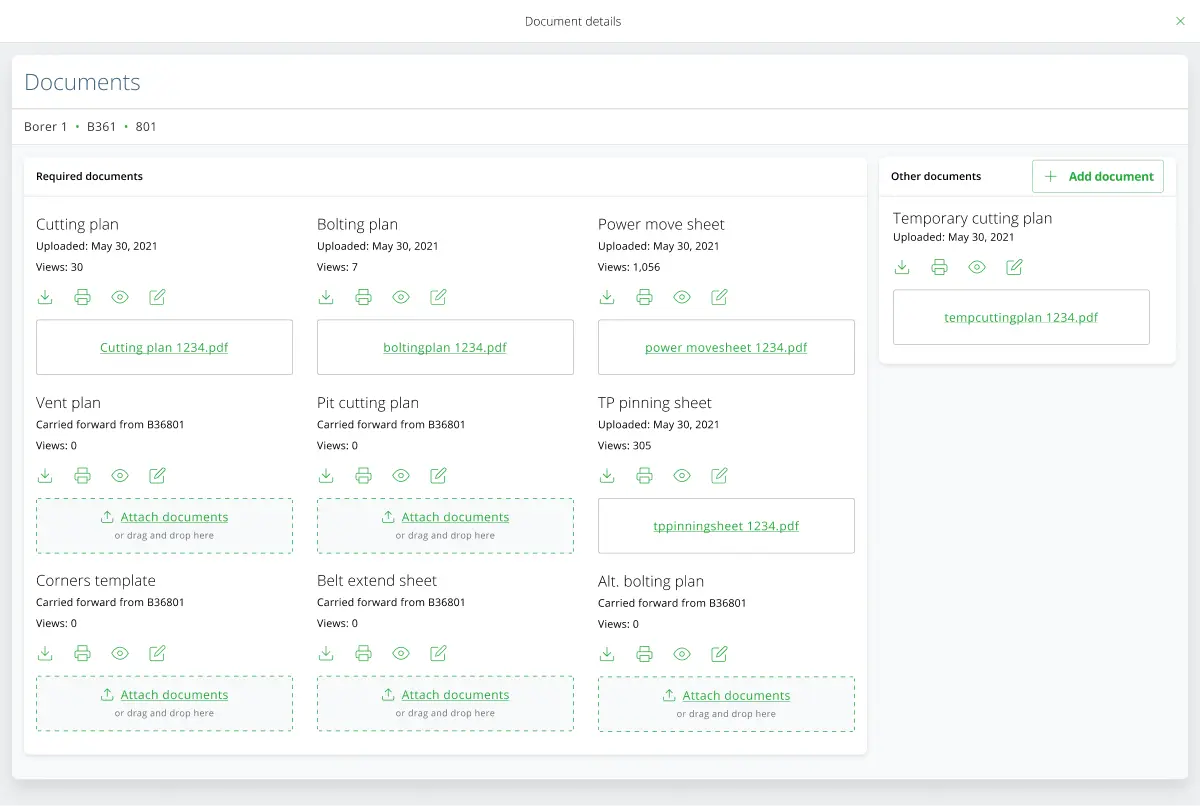
The MineSight supervisors want a way to see all the documents assigned to a location and all the rooms that are available, so that current, past and future documents can be viewed/tracked.
User Problems
After talking with the BA and Dev, we’ve identified some areas of user frustration:
• Users Can’t see locations without a borer
• Users wants to confirm that the documents they just uploaded is in the location
• The users are not very good with computers
• The users, who are primarily older, doesn’t want major changes in the interface.
Enhancements
There are 4 key areas where we made changes and were tested out:
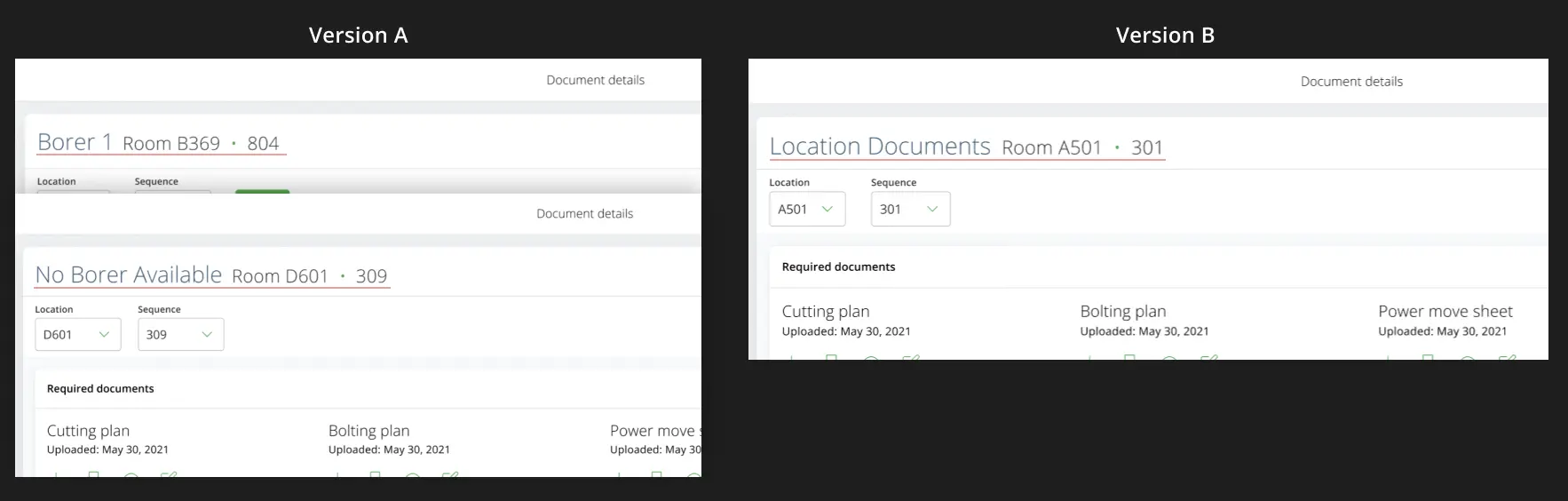
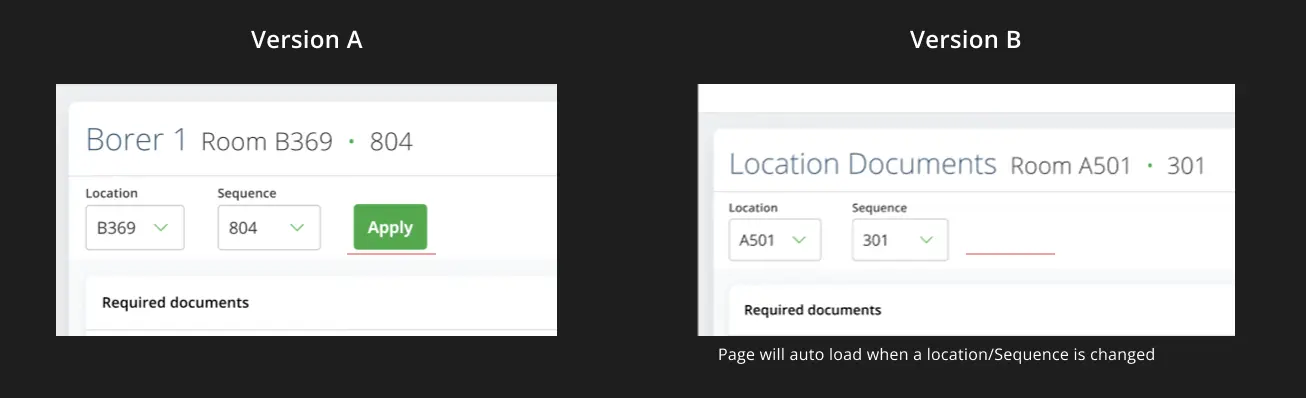
• The location document page title. The title of the page and the subheading have a repeated name. The 2 options we are testing are changing the sub header name to “Borer Name” (when its available) and “No Borer Available” when location does not have a borer within. Second option is to always have “Location Documents” as the sub header, which may lead to less confusion from the users.
• Changing the location on the document page. An enhancement to the document page is allowing a user to change their location of the document page, we want to test if an apply button is necessary after changing the drop downs.
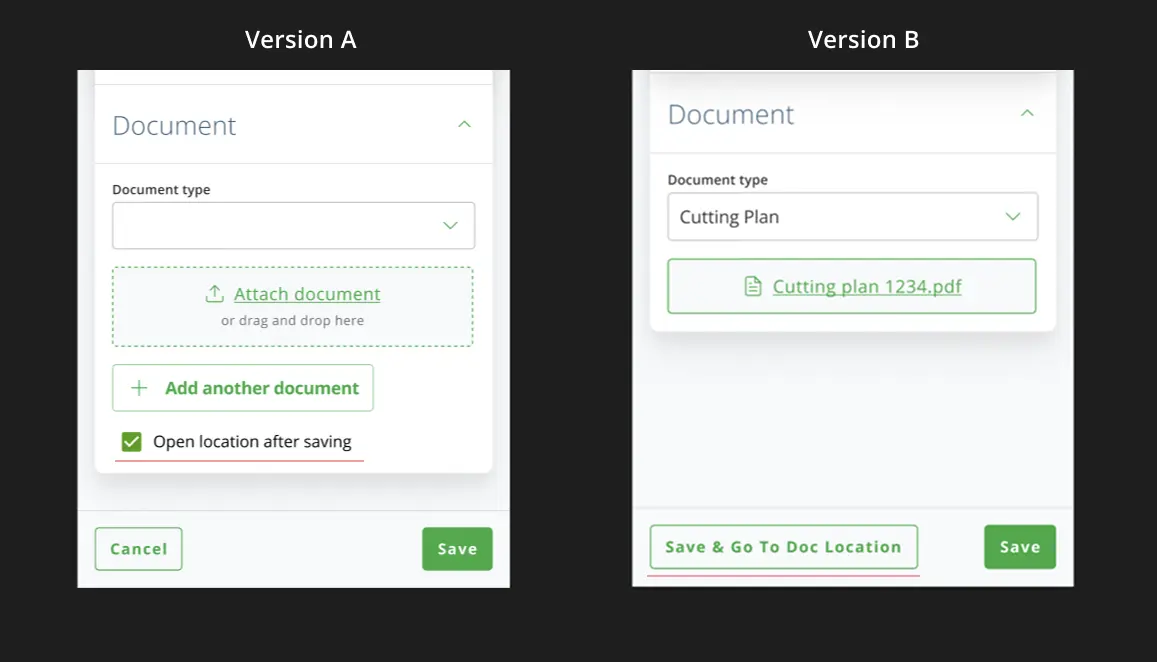
• Directly going to saved document location after saving the document. We’re adding a way for users to go to the location where they saved their document in the same step. We want to test which is cleaner, a check box, or a button.
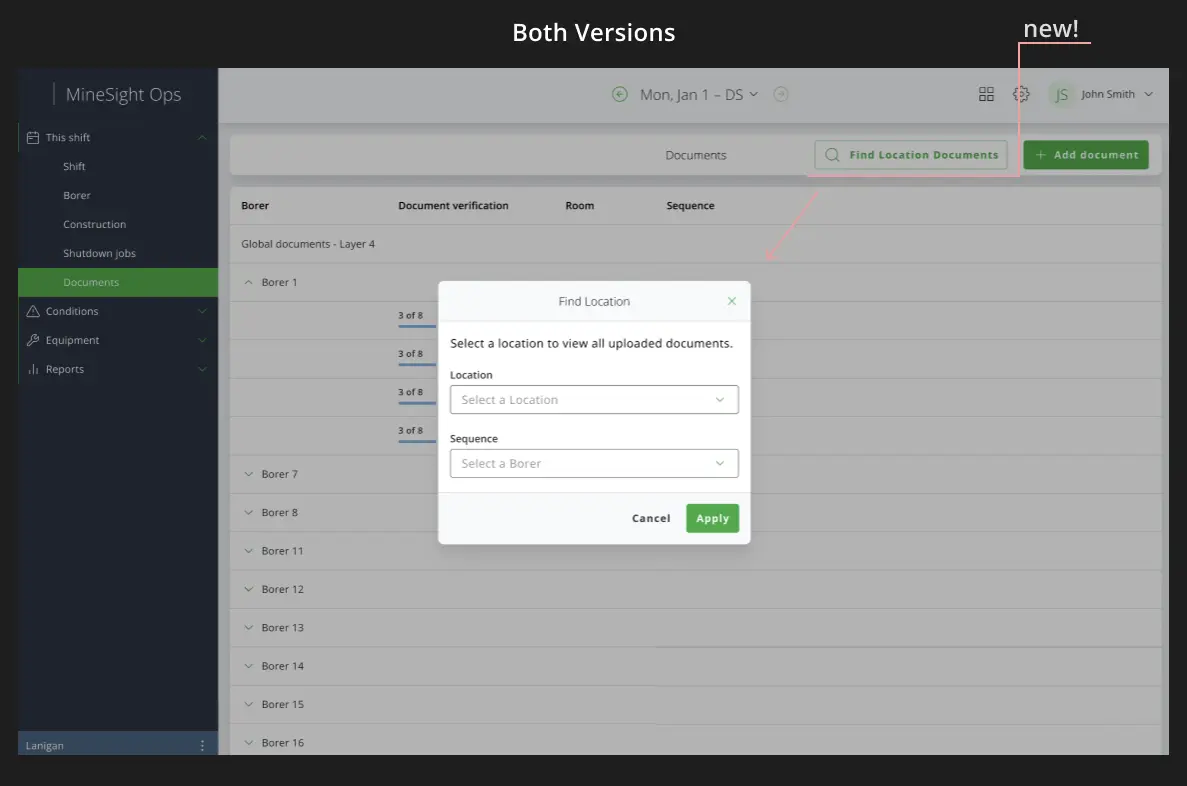
• Find Location Documents button. An enhancement to the borer table, users can go to any location documents right from the borer table. We want to test the usability of this feature.
Testing
The test was split up into 2 versions, 3 testers completing each. The prototype was made in Figma and the tasks and testing was done in Maze. The users were played the role of a mine supervisor, they were given a scenario and the task they needed to complete on screen.
Task 1 (Finding document page for location)
The tester needs to go to the location document page.
Most testers completed this task, averaging around 50 seconds. Some time was taken first to learn the screen by all the testers. After that, testers completed the task by clicking on the table. 1 tester completed the task by using the Find Location Documents button.
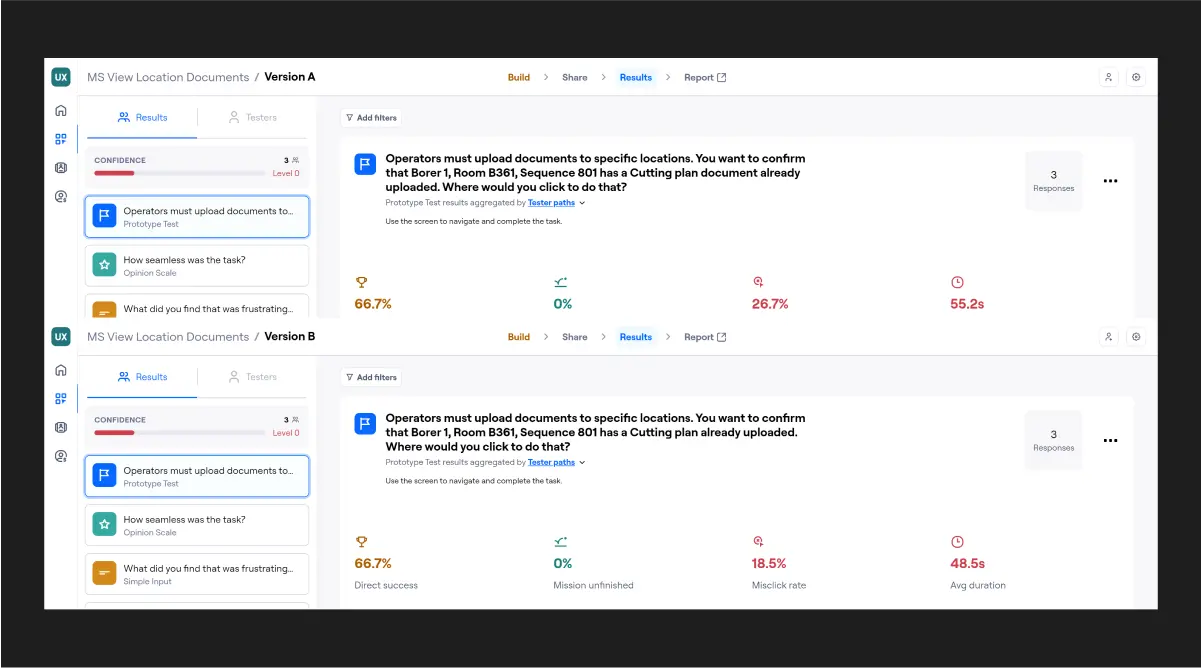
Task 2 (Change location document, button vs no button) :
Change the location of the location document page with the drop downs.
From both versions, 5 out 6 testers completed this task and gave the task 5/5 in seamlessness.
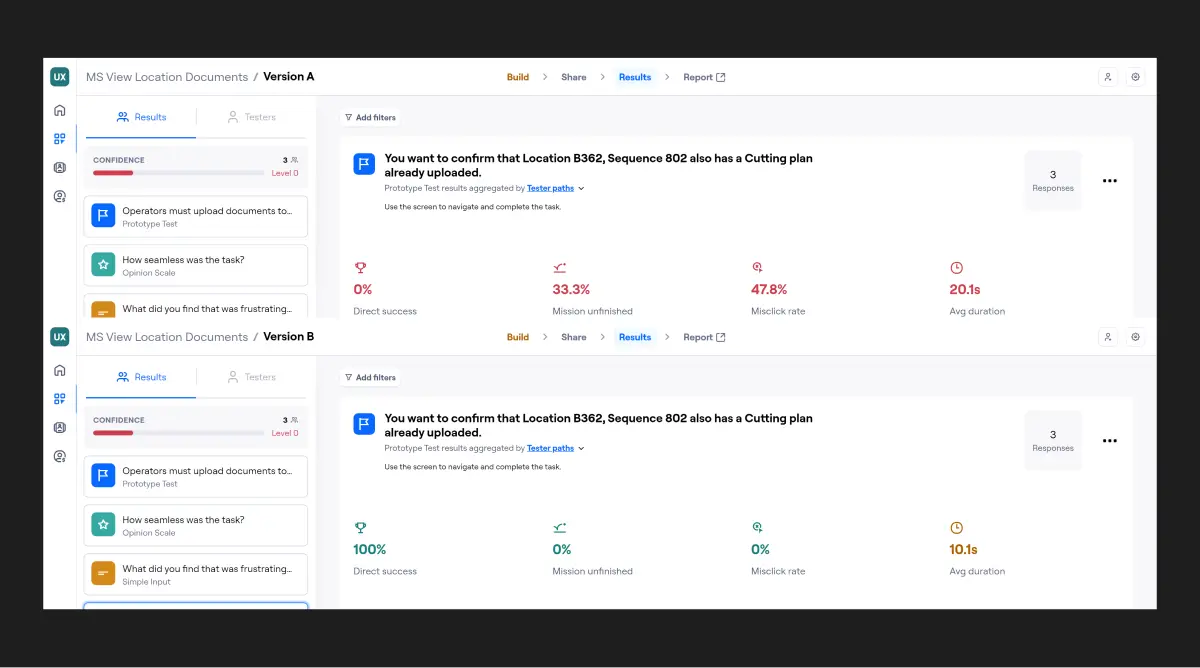
On average the version with the button has a lower completion time at around 10 seconds, the version without the button is slower at around 20 seconds, with 1 person closing out the location document page and missing the drop downs.
Task 3 (adding a document, button vs check box)
Add a document and go to the location.
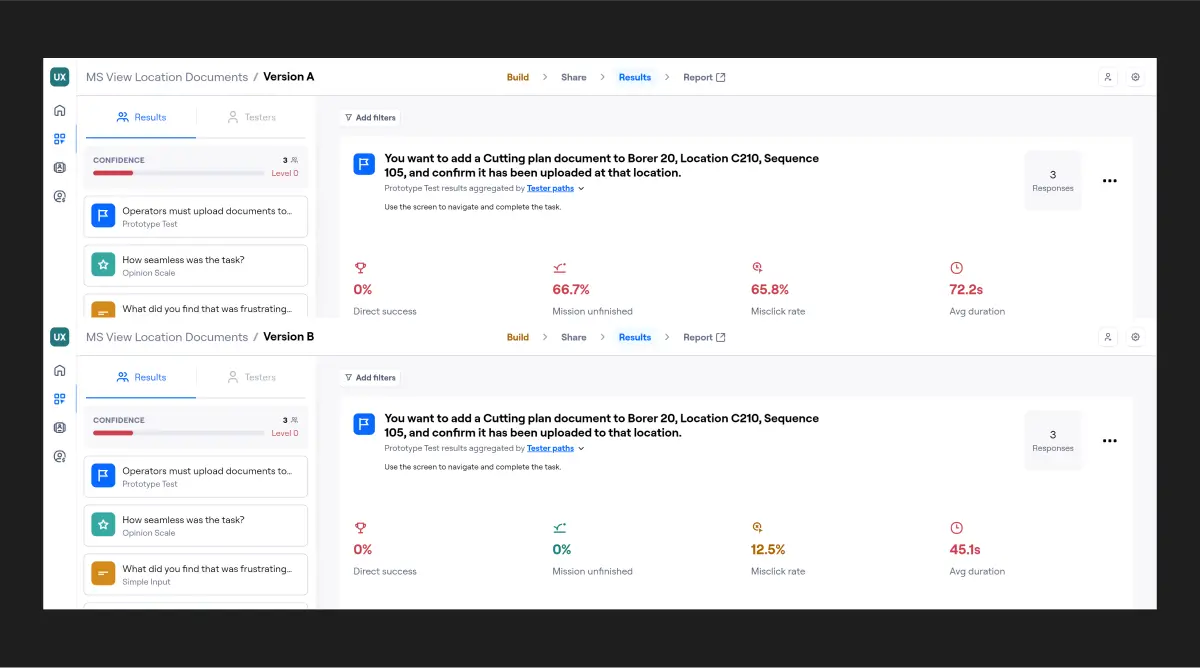
A point of frustration seems to be actually finding the “Add document” button. Everyone tried to look for borer 20 from the table. When they saw it wasn’t there, they think it’s an error (which in the real world it would be). Testers then looked around the page in confusion, most people then found the Add Document button.
The version with the button has a higher success rate of all 3 testers, while the check box version has no success testers.
The check box version only had 1 tester click on the Add Documents button, 2 of testers completely missed the Add document button, even clicking on the find location button, and eventually giving up on this task. The 1 tester that did click on add documents did not check the box to go to the location document, which doesn’t count as a success.
Task 4 (use find location documents)
Use the Find Location Documents Button to access the location document Page.
5/6 testers completed the task and gave it 5/5 in seamlessness. 1 person didn’t select a sequence and couldn’t complete the task.
Recommendations
We recommend the following:
• The Page sub header will be the borer name, and changes to No Borer Available
• The location document page will have the apply button after drop downs
• The button will be used in Add Document
• Find Location Documents button will be added to the borer table
Lessons Learned
We recommend the following:
• For task 1, what we wanted to test is the title name, which title name makes sense, “Location Documents” vs “Borer Name” & “No Borer Available”. The prototype and the task could have been setup differently to highlight what we wanted to test.
• Task 3, we weren’t testing if they can find the add documents button, we should either tell the testers to use the button to do this task or start the testers on that screen.
• Tasks should be written out and mapped before creating the prototype. The prototype should follow the task, not the other way around. This could of prevented the problem with task 1.
• Be aware of limitations of maze, completion of a task will immediately take the user to the next screen.
• Each prototype should be created separately based on the task, not one continuous flow.
• Having the seamless scale is very useful to quickly tell the usability and who was struggling.
• Don’t forget to enable clips in maze.